
Google Photo Album
This page investigates the Google photo album app on my phone, as an example of a phone app to display photos.
Photo Stream
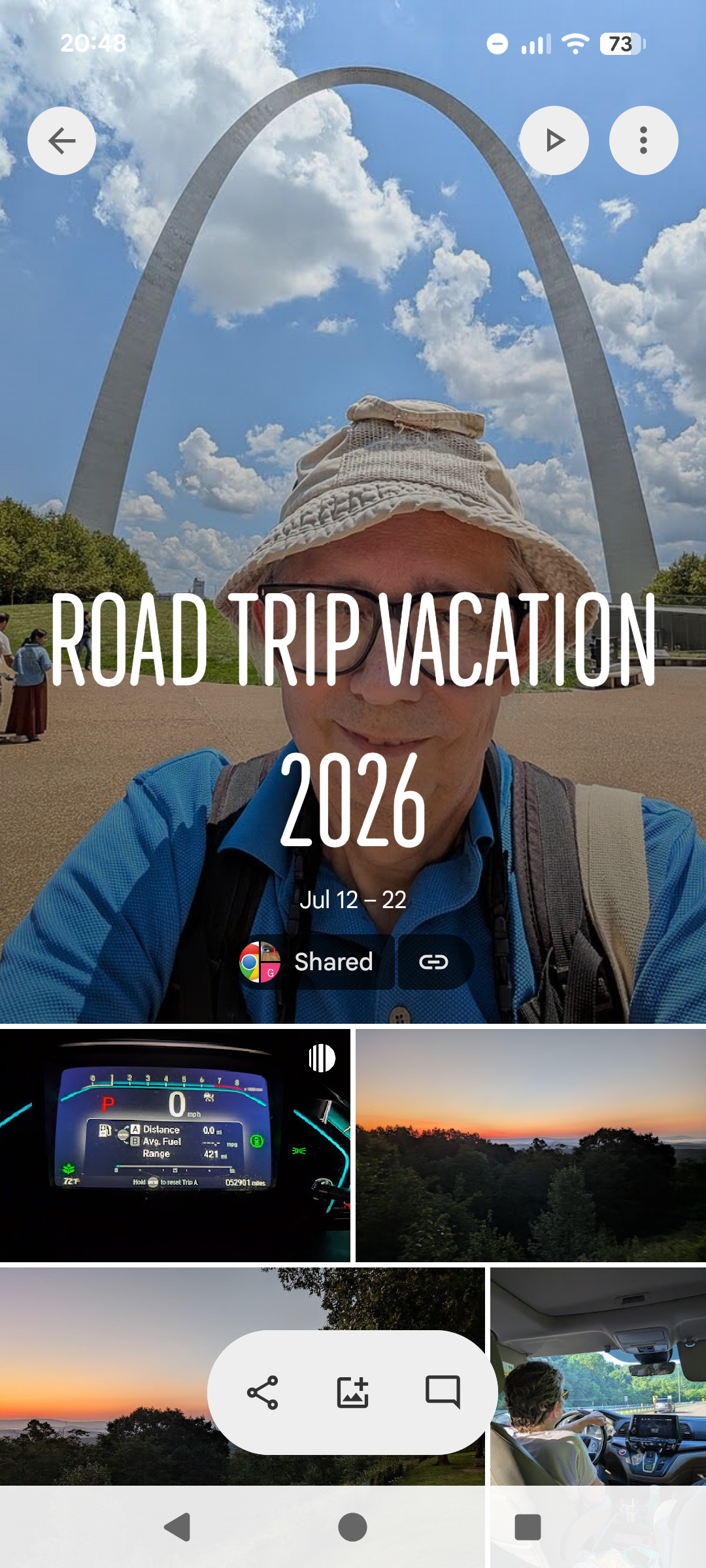
This is how the album opens. It starts with a cover photo (which I believe I had to specify) at the top, a title, and a date. There is information with who the album has been shared, and a link icon that allows you to get to the URL for the album.
At the top are the standard phone top bar icons. Below that an left arrow to exit the photo album browser, a right triangle to “play” a selection (possibly random) of the album, and a three dots for additional options.
Below starts the stream of the album (more about this next). In the stream is an oval with three options: share, add photos (I guess because I’m the owner of the album), and comment.
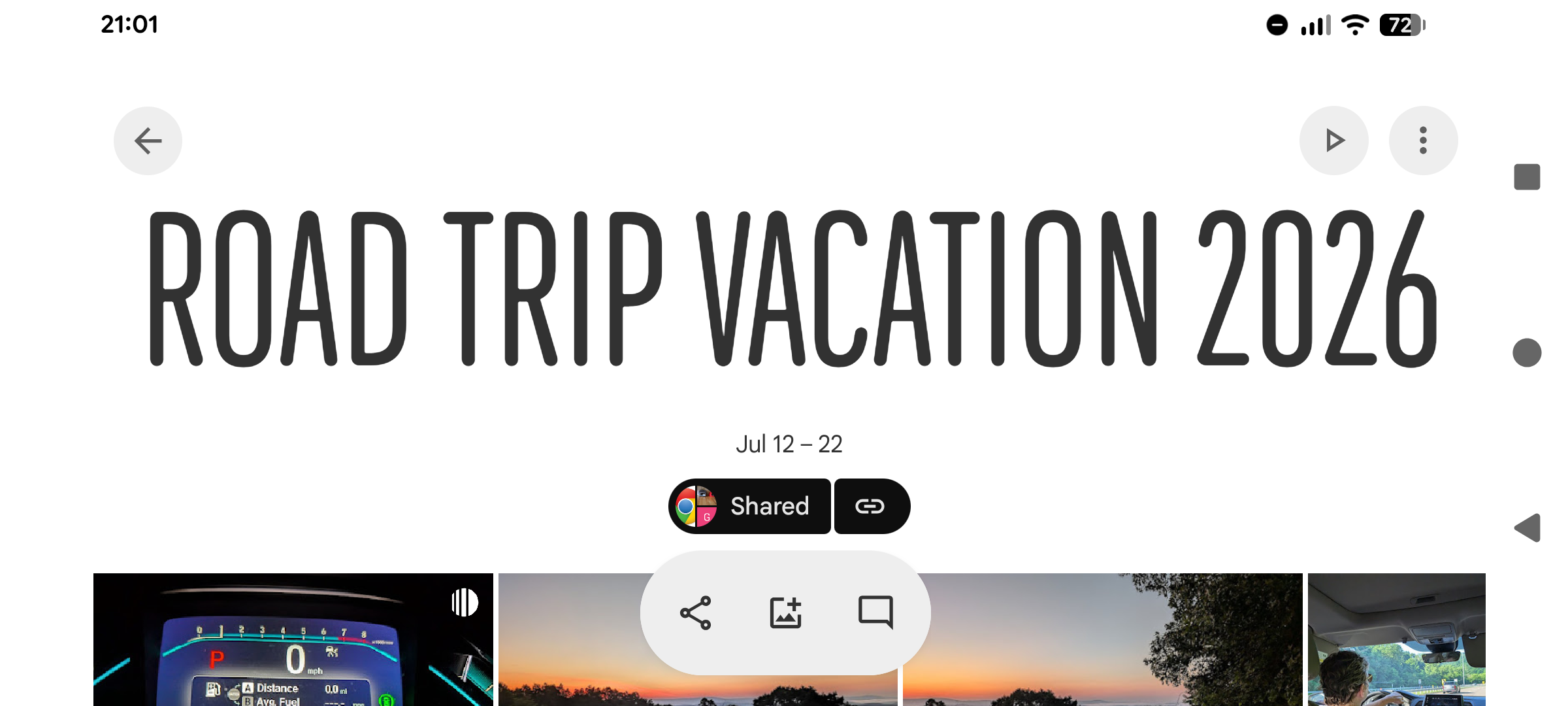
Turning the phone 90° for a portrait mode has the same element, but the album title photo is not featured (possibly because it’s a portrait photo).
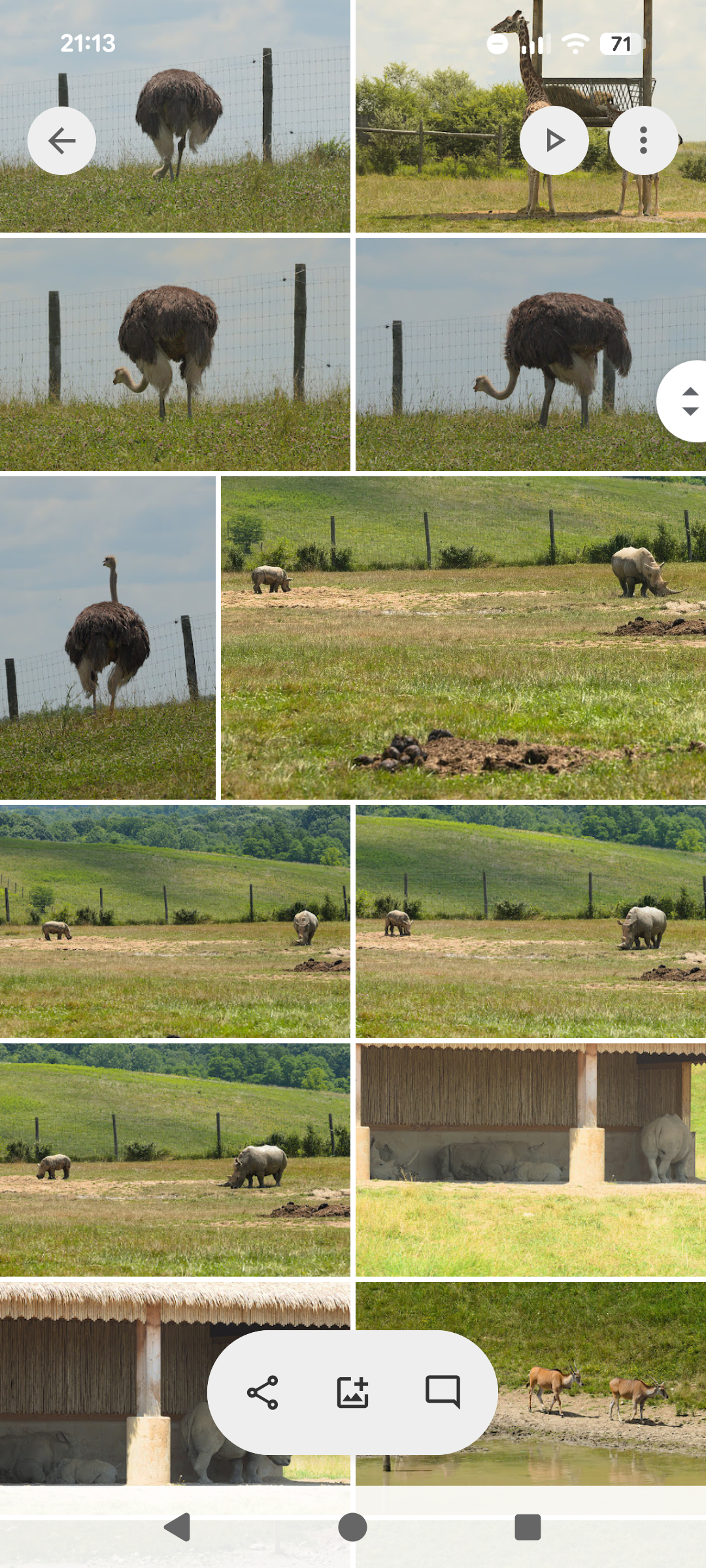
Scrolling through the series of photos displays lines of two photos: two landscape, two portrait, or a landscape and portrait photo.
Not the scroll icon on the right edge. When interacting with the page, the scroll bubble appears, which you can drag to quickly scroll through the page. Otherwise, scrolling is just my moving your finger up and down.
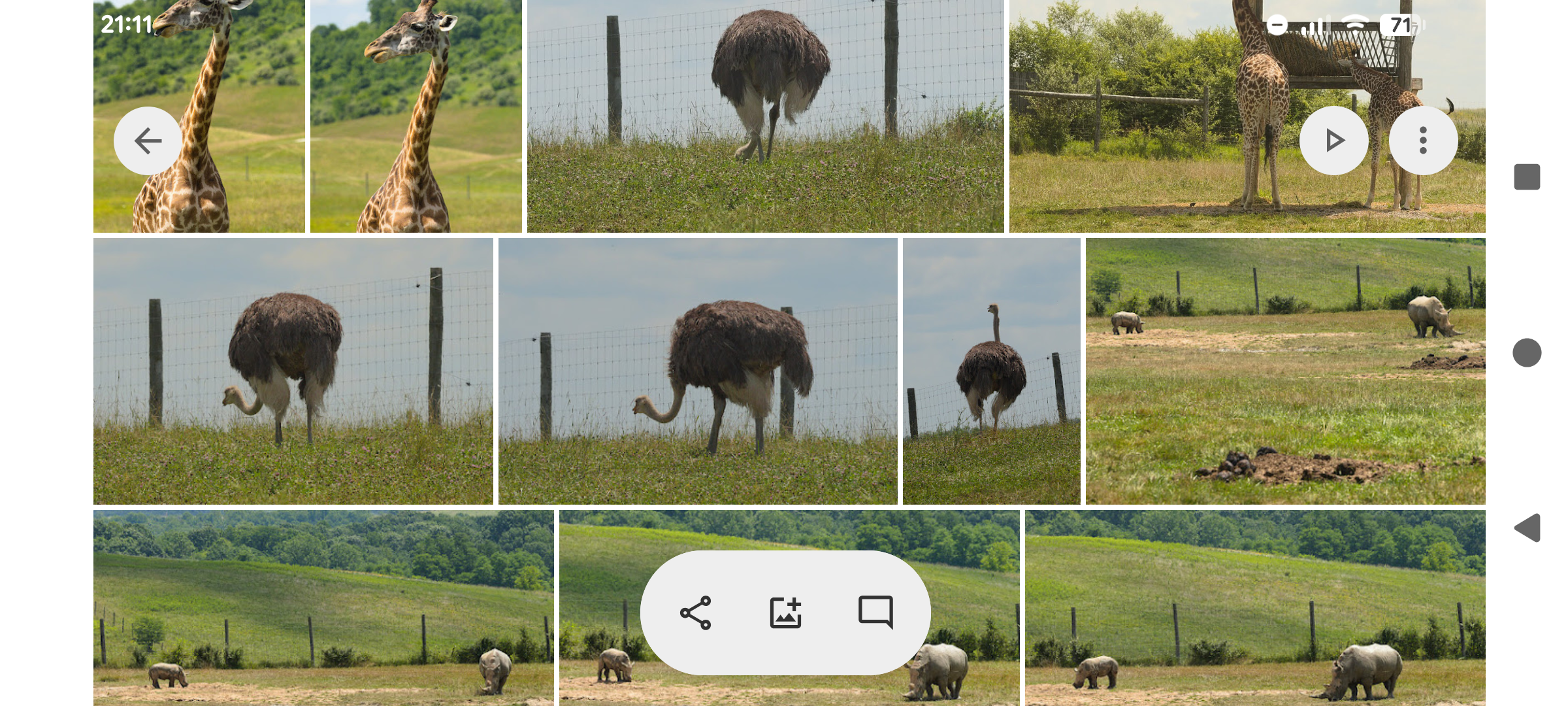
Scrolling through it in landscape shows three or more photos side by side; there is clearly an algorithm to determine how to combine the photos in lines depending on their aspect ratio. I noticed up to six portrait photos in a line, whereas three landscape photos come in a line. Combinations of portrait and landscape quickly go to four in a line, I’m sure it's possible to have five as well.
Individual Photos
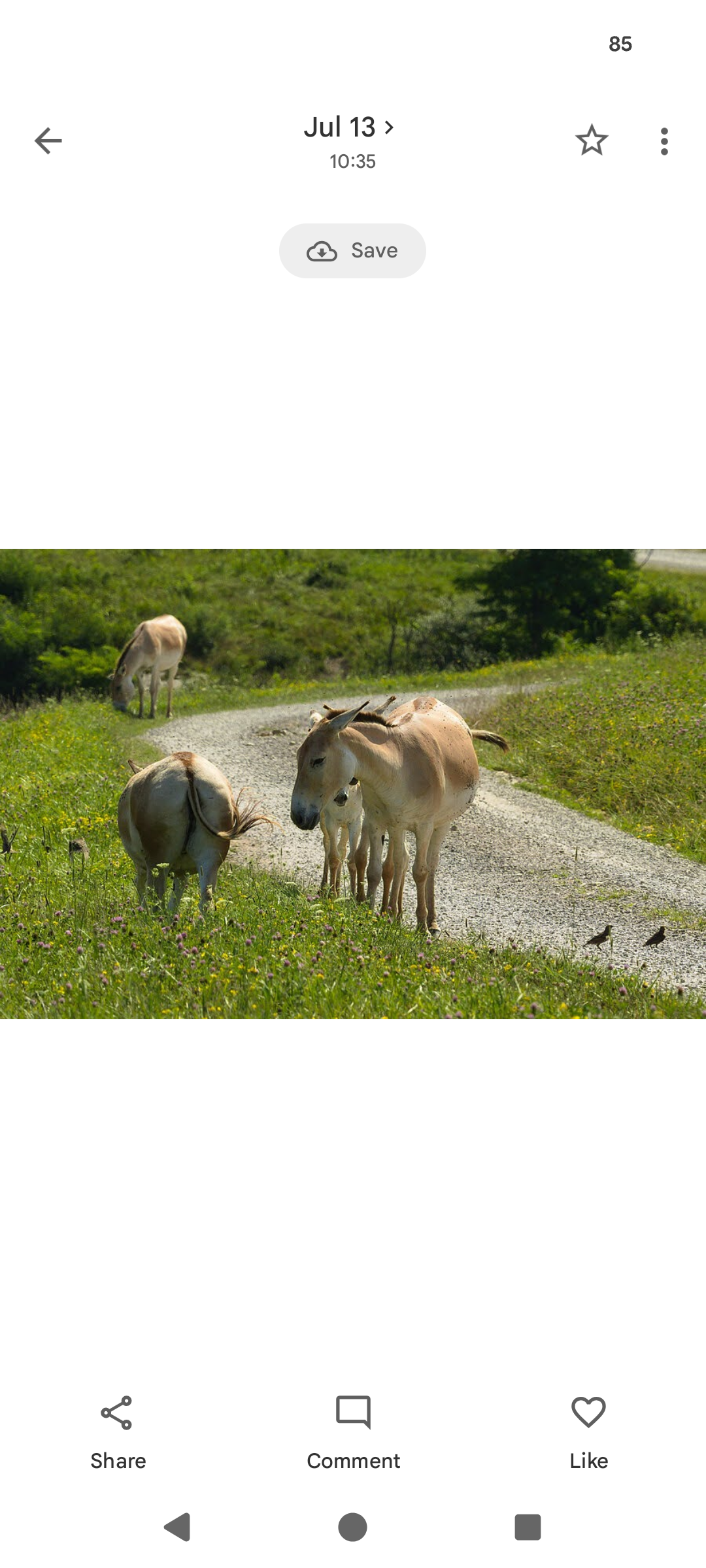
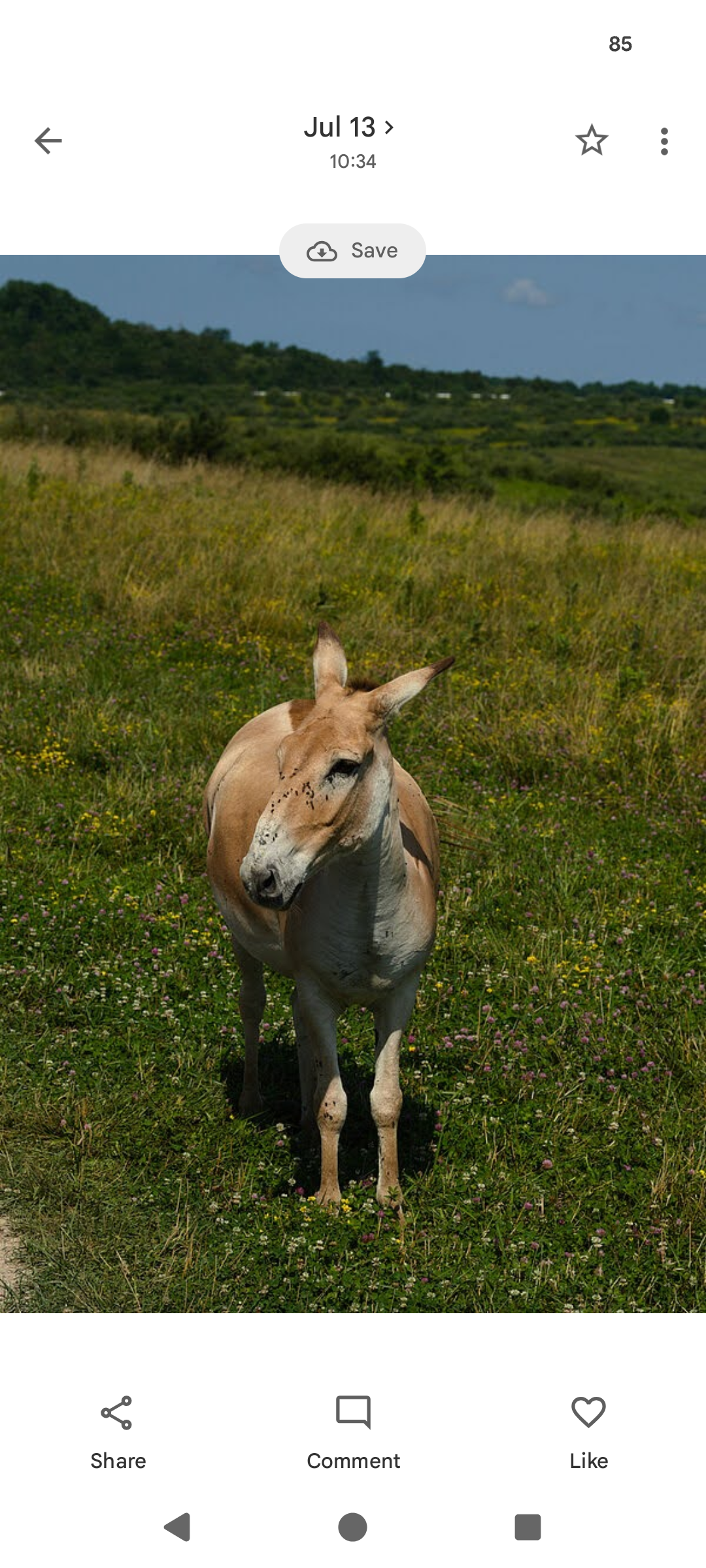
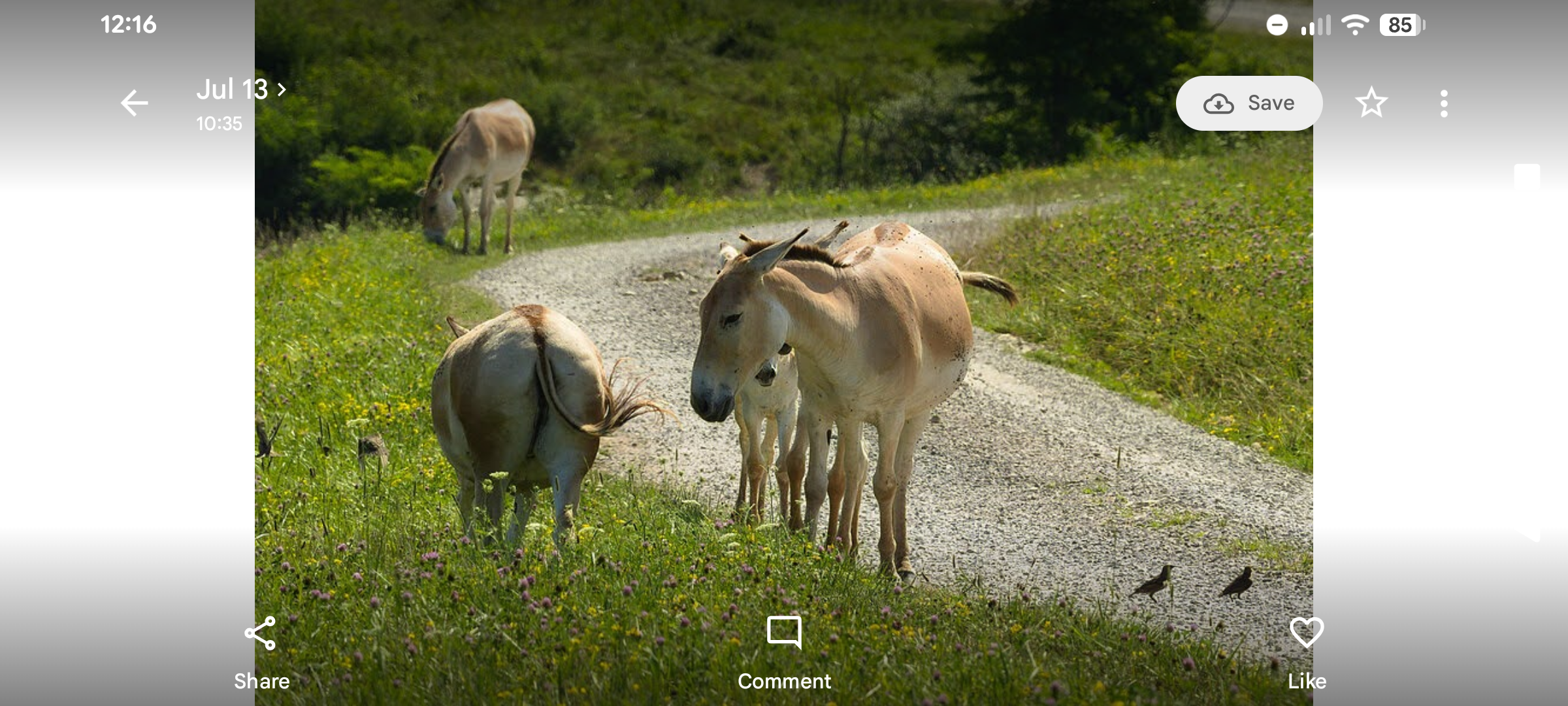
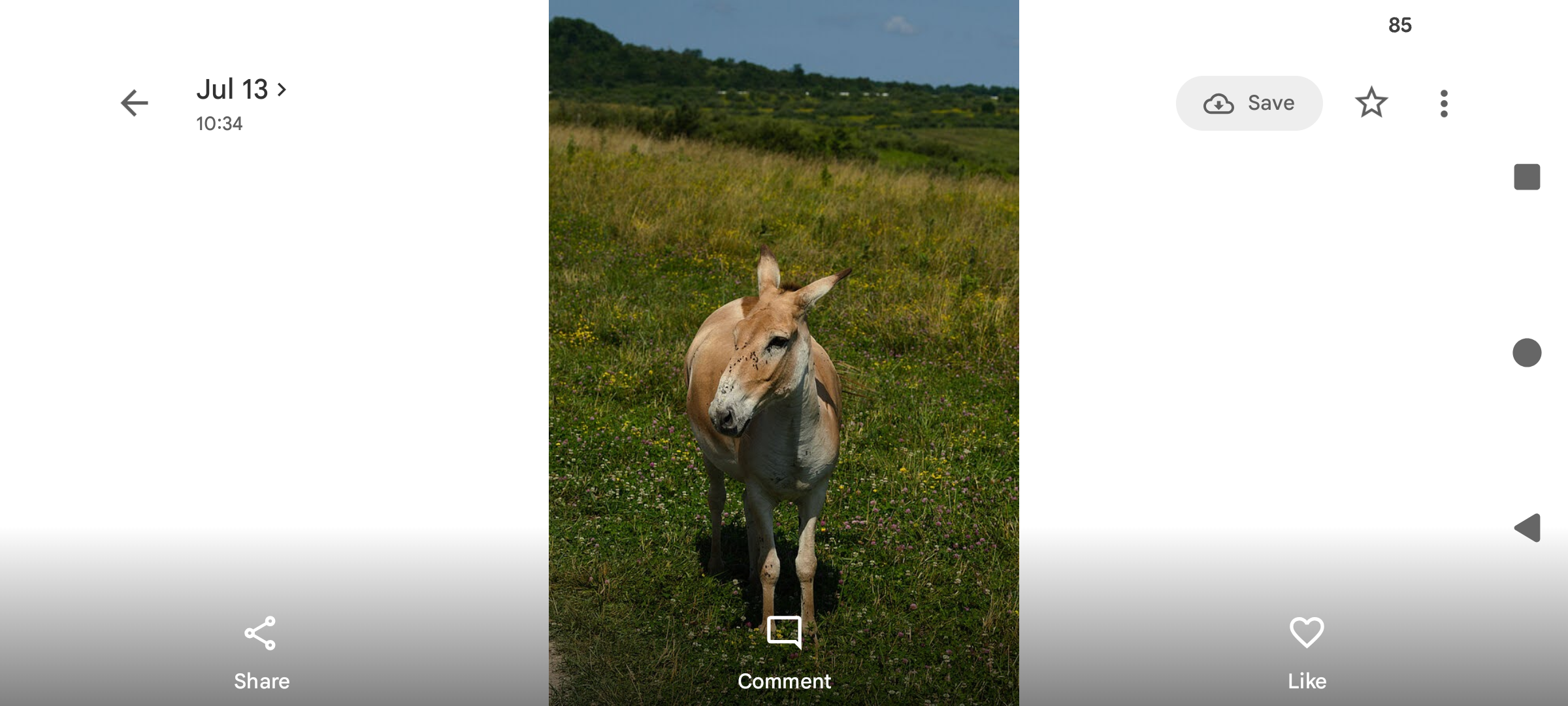
Clicking on a photo brings up a display of just that photo; the screenshots show combinations of landscape and portrait photos with holding the phone vertically or horizontally. Note the gray gradiated borders in the horizontal phone position.
Single photos can be added to “favorites” by clicking on the star icon.

Interestingly, starting to zoom in changes the background color from white to black? I wonder why that is. Also, all other options fall away; clicking (tapping) bring the options back, tapping again hides the options. Double tapping toggeles between fully zoomed in (pixel for pixel display) and fully zoomed out (display entire photo)
To get out of zoom mode, zoom back out just a little bit beyond the display of the full individual photo. Alternatively, tapping on the fully zoomed out photo (the photo exactly fills the screen) toggles between regular mode (with the white background) and zoom mode (with the black background).
In the individual photo display, zooming out (pinching) returns to the list of images, as does using the back arrow.
Summary
A couple of observations from the Google Photos app:
- Figure out the algorithm to display a stream of photos. Whatever the details, the algorithm will need to know exact ratio (width÷height) of the photos to determine how to put them together. Note that the same algorithm also works on the web interface, although there seem to be small differences so the exact algorithm may take pixel density and other factors into account.
- Zoom goes from displaying the entire photo up to displaying pixel-for-pixel. Zooming in will need access to the full edited / original image. Or maybe not? Maybe only to a standard reduced size?
- Zooming in the web app has some interesting additional feedback to review in the future.